
Serpspur provides a detailed credit tracking system that allows you to monitor how your credits are used across different SEO activities. This helps you understand where your credits are being spent and manage your usage efficiently.
By checking your credit usage history, you can track actions like site audits, keyword tracking, and other advanced features that consume credits. This ensures better control over your SEO workflow and prevents unexpected credit usage.
In this guide, you will learn how to access and view your credit usage history step by step.
Step 1: Open Serpspur Dashboard
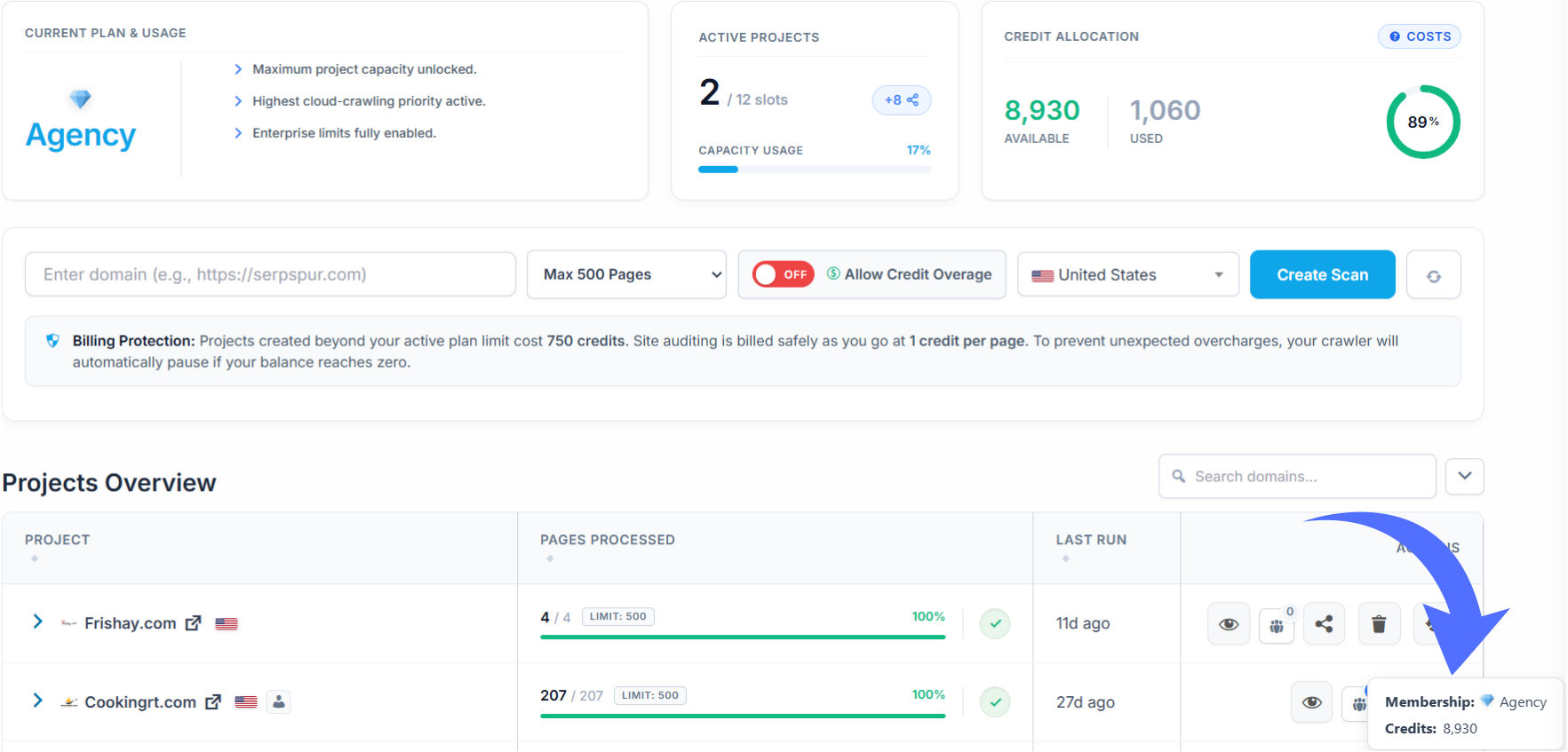
Log in to your Serpspur account and go to the Dashboard, where you can see your plan details, credits, and project overview.
Explanation
The dashboard gives you a quick overview of your current plan, available credits, and overall usage.
Step 2: Open Membership Details
On the dashboard, go to the bottom right side and click on the Membership section.
Explanation
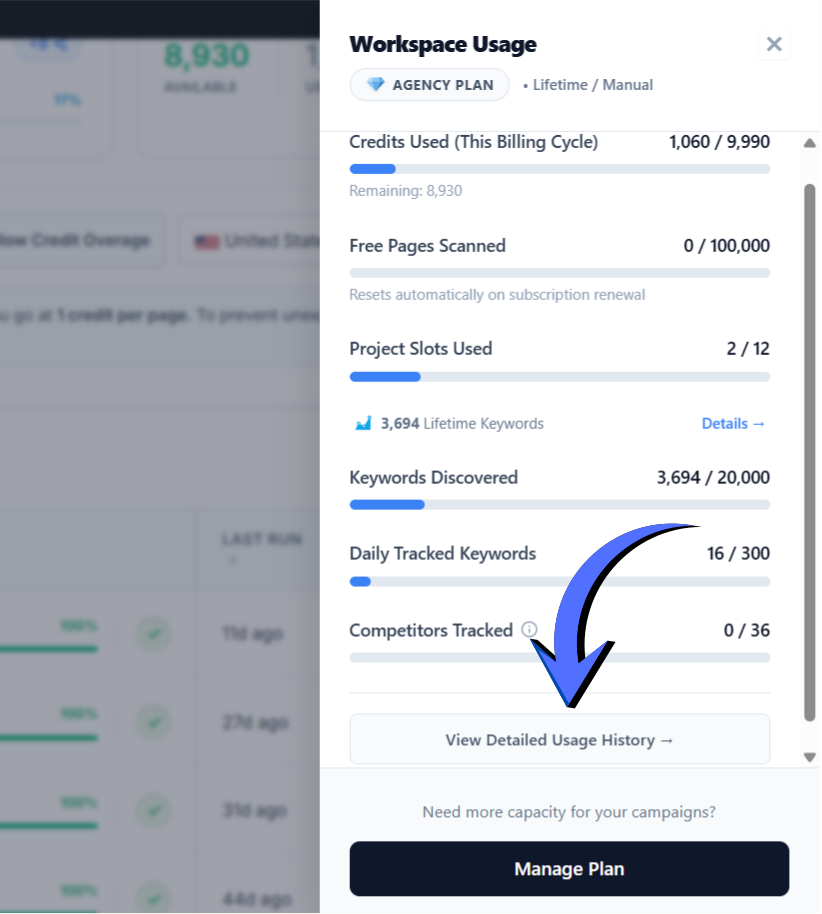
Clicking on Membership opens the Workspace Usage panel, where you can see detailed information about your credits, keyword usage, and project limits.
Step 3: View Detailed Usage History
Inside the Workspace Usage panel, click on View Detailed Usage History.
Explanation
This option takes you to a detailed view where you can track how many credits you have used and where they were spent.
Step 4: View Credit Usage History
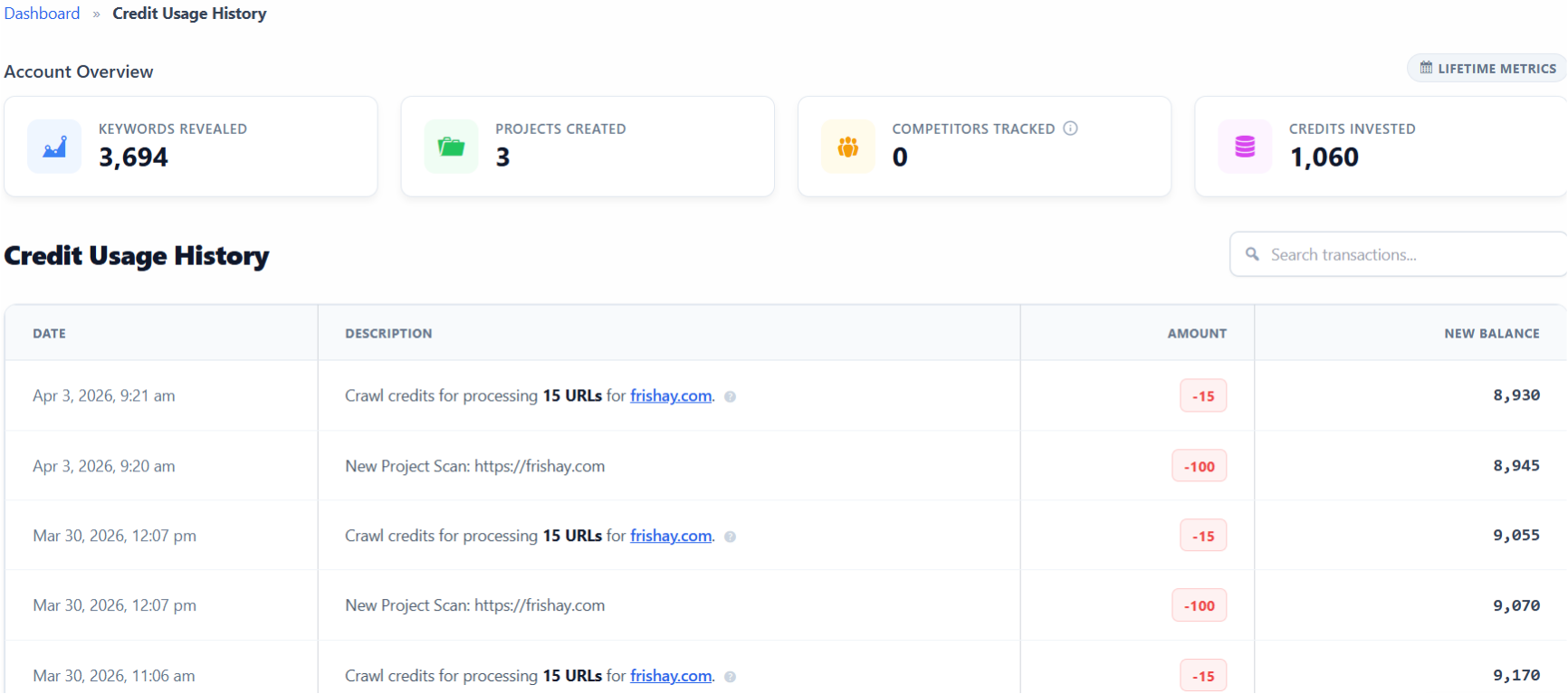
After clicking on View Detailed Usage History, you will be redirected to the Credit Usage History page.
Explanation
On this page, you can see complete details of your credit usage, including:
- Date and time of usage
- Description of the action (e.g., project scan, crawl)
- Credits deducted for each action
- Remaining balance after each usage
This helps you track exactly where and how many credits have been used in your account.