
Serpspur uses a smart credit-based system along with flexible plans to help you perform SEO tasks like keyword tracking, site audits, and competitor analysis. Understanding how credits and plan limits work is important to manage your SEO activities efficiently.
Each plan in Serpspur provides specific allowances such as monthly credits, project limits, keyword tracking capacity, and page scan limits. In addition, advanced features may consume credits depending on usage.
In this guide, you will learn how to access the credit cost schedule and understand what is included in each plan, along with how credits are used across different features.
Step 1: Go to Credit Cost Schedule
After logging into Serpspur, go to the Dashboard and locate the Credit Allocation section. Click on Costs to open the Credit Cost Schedule page.

From there, click on the Costs option in the Credit Allocation section. This will redirect you to the Credit Cost Schedule page, where you can view all plan limits and credit usage details.
Explanation
Once you access the dashboard, the credit allocation section provides a quick overview of your available and used credits. By clicking on Costs, you can open the detailed credit cost schedule page, which includes all allowances, limits, and feature-wise credit usage.
Step 2: View Your Included Allowances
On the Credit Cost Schedule page, you will see the Your Included Allowances section.
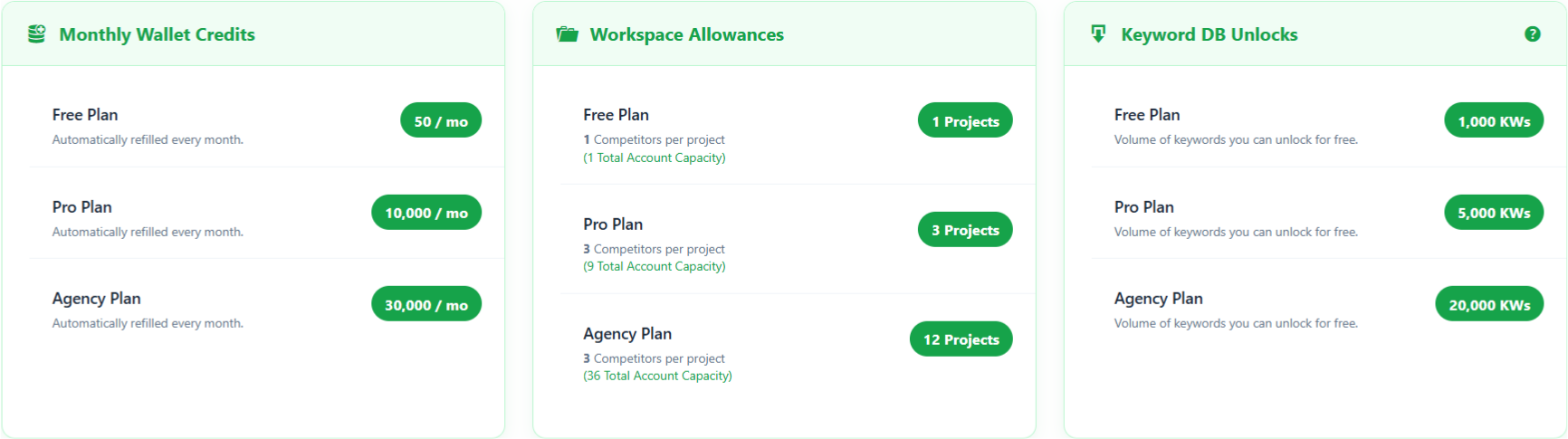
Monthly Wallet Credits
| Plan | Credits per Month |
|---|---|
| Free Plan | 50 credits |
| Pro Plan | 10,000 credits |
| Agency Plan | 30,000 credits |
Workspace Allowances
| Plan | Projects Allowed |
|---|---|
| Free Plan | 1 project |
| Pro Plan | 3 projects |
| Agency Plan | 12 projects |
Keyword DB Unlocks
| Plan | Keywords Limit |
|---|---|
| Free Plan | 1,000 keywords |
| Pro Plan | 5,000 keywords |
| Agency Plan | 20,000 keywords |
Explanation
This section shows what is included in your plan such as credits, project limits, and keyword access.
Step 3: Check Usage Limits
Scroll down to view usage-based limits.
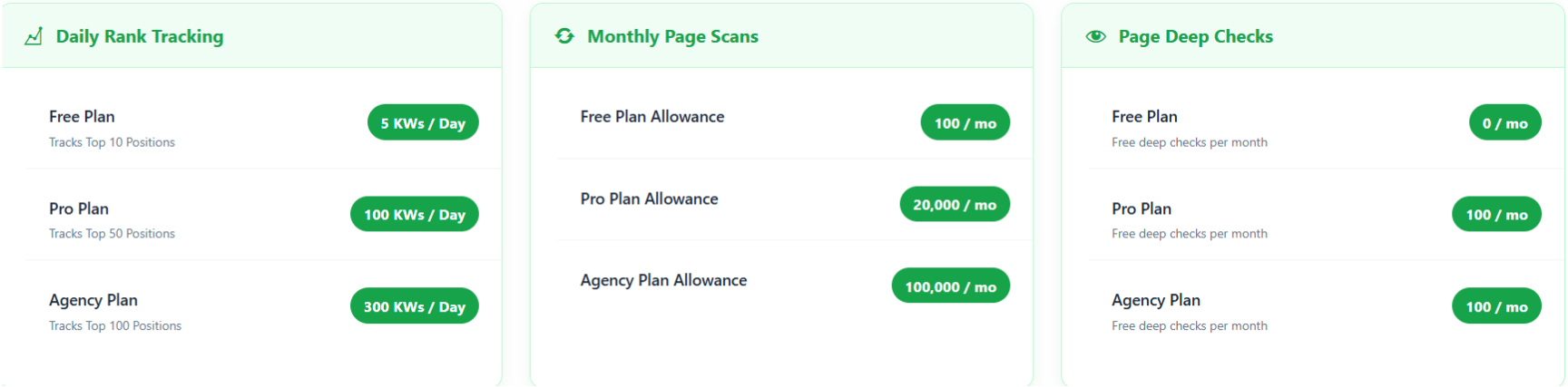
Daily Rank Tracking
| Plan | Keywords per Day | Tracking Depth |
|---|---|---|
| Free Plan | 5 keywords/day | Top 10 |
| Pro Plan | 100 keywords/day | Top 50 |
| Agency Plan | 300 keywords/day | Top 100 |
Monthly Page Scans
| Plan | Pages per Month |
|---|---|
| Free Plan | 100 pages |
| Pro Plan | 20,000 pages |
| Agency Plan | 100,000 pages |
Page Deep Checks
| Plan | Checks per Month |
|---|---|
| Free Plan | 0 |
| Pro Plan | 100 |
| Agency Plan | 100 |
Explanation
These limits define how much you can use daily and monthly features without consuming extra credits.
Step 4: View Credit Cost Schedule
Scroll further to see advanced feature costs.
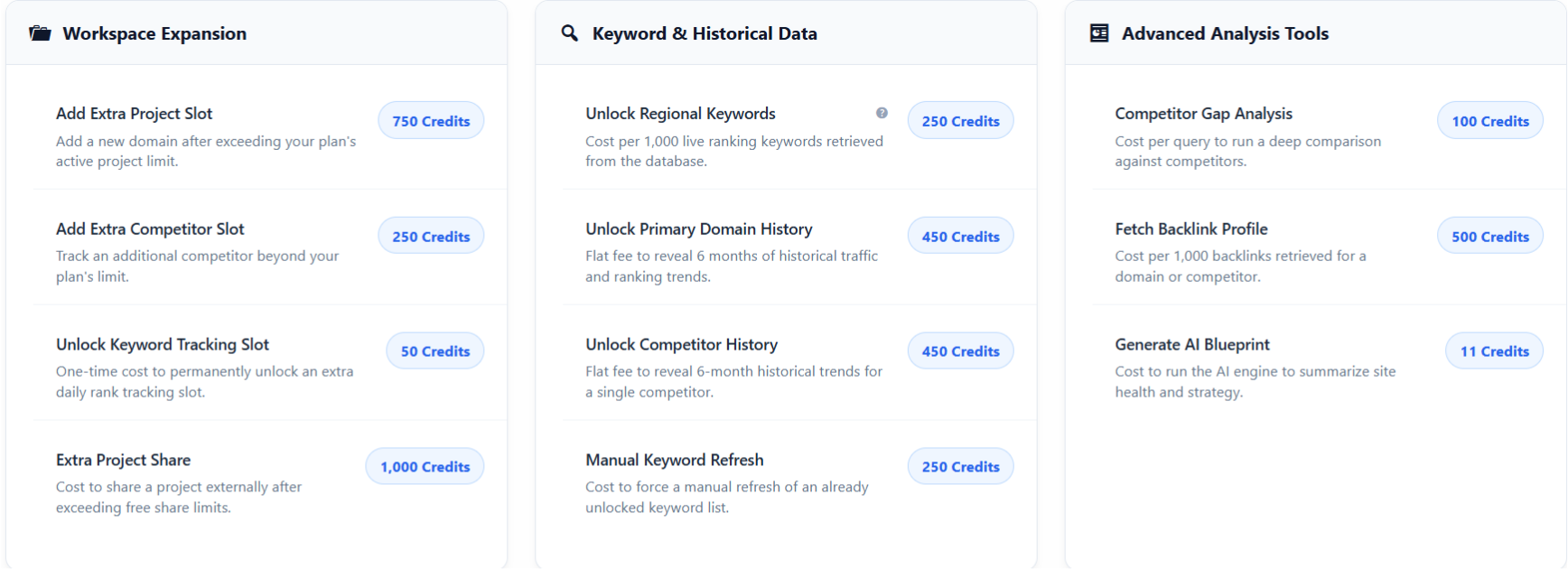
Workspace Expansion
| Feature | Credits Required |
|---|---|
| Add Project Slot | 750 credits |
| Add Competitor Slot | 250 credits |
| Unlock Tracking Slot | 50 credits |
| Project Share | 1,000 credits |
Keyword & Historical Data
| Feature | Credits Required |
|---|---|
| Regional Keywords | 250 credits |
| Domain History | 450 credits |
| Competitor History | 450 credits |
| Keyword Refresh | 250 credits |
Advanced Tools
| Feature | Credits Required |
|---|---|
| Competitor Gap Analysis | 100 credits |
| Backlink Profile | 500 credits |
| AI Blueprint | 11 credits |
Explanation
This section shows how many credits are used when you access advanced SEO features.
Step 5: Crawling & Maintenance Costs
At the bottom, you will find crawling-related costs.
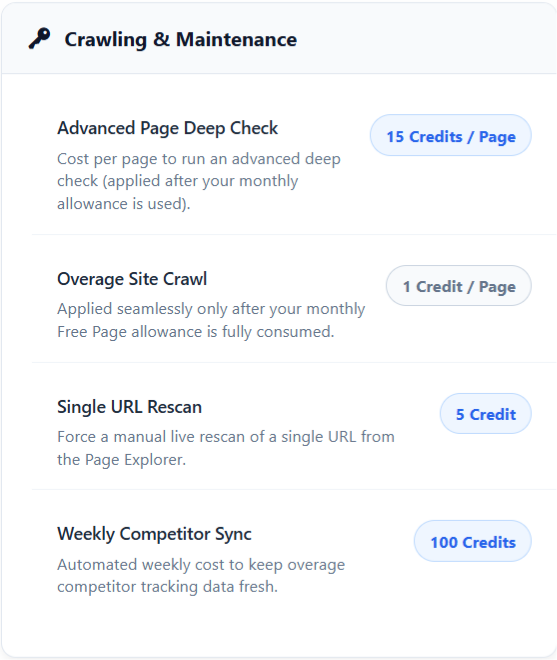
Costs Breakdown
| Feature | Credits Required |
|---|---|
| Advanced Page Deep Check | 15 credits per page |
| Overage Site Crawl | 1 credit per page |
| Single URL Rescan | 5 credits |
| Weekly Competitor Sync | 100 credits |
Explanation
These costs apply when you exceed limits or perform manual/advanced actions like rescanning or deep analysis.