
AI-generated results like Google AI Overviews are changing how search works. Instead of showing only traditional links, Google now provides direct answers using AI. To stay competitive, it’s important to understand which keywords trigger AI results and how you can optimize your content accordingly. Serpspur’s AI SERP Blueprints feature helps you identify these opportunities and shows you exactly how AI-generated answers are structured for specific keywords.
In this guide, you will learn how to find AI-driven keywords, analyze SERP features, and generate AI blueprints to improve your SEO strategy.
Step 1: Open Your Project Dashboard
After creating a scan for your website, open your project from the dashboard.
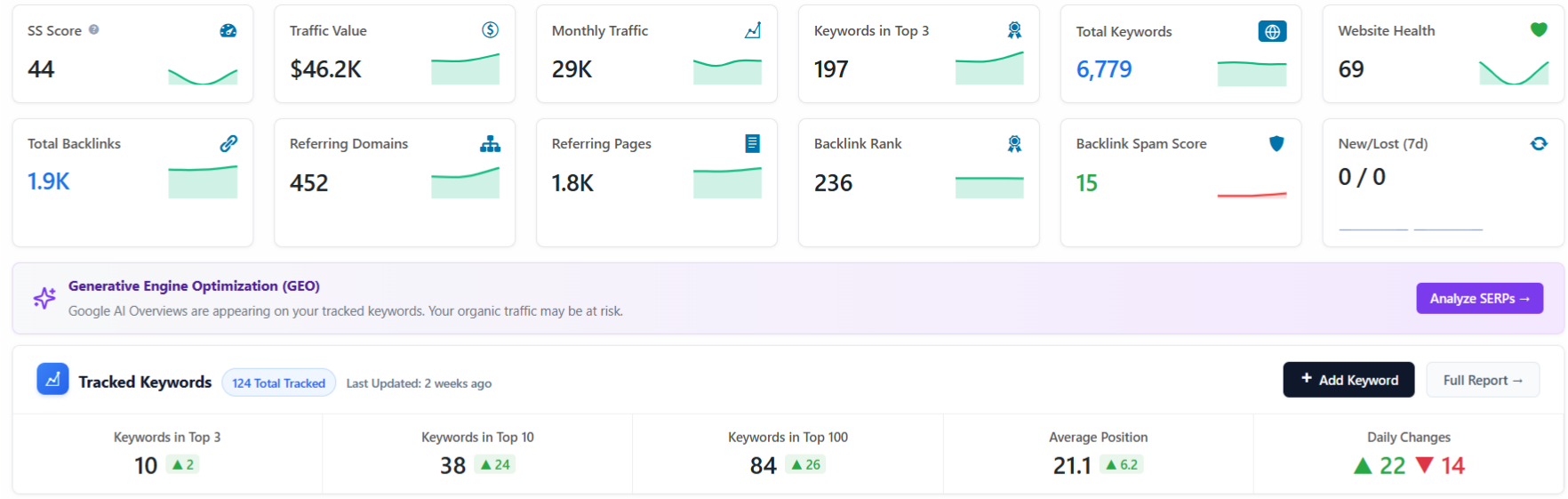
Here, you will see a complete overview of your website’s SEO performance, including traffic, keywords, and backlinks.
Explanation
This dashboard shows all important SEO metrics in one place and gives you access to advanced features like SERP analysis.
Step 2: Click on “Analyze SERPs”
On the dashboard, locate the Analyze SERPs button in the GEO (Generative Engine Optimization) section and click on it.

Explanation
Clicking on Analyze SERPs will take you to the AI SERP Blueprints section, where you can analyze how AI-generated results (like Google AI Overviews) appear for your keywords.
Step 3: Identify Keywords with AI Results
After clicking on Analyze SERPs, scroll down to the tracked keywords section.
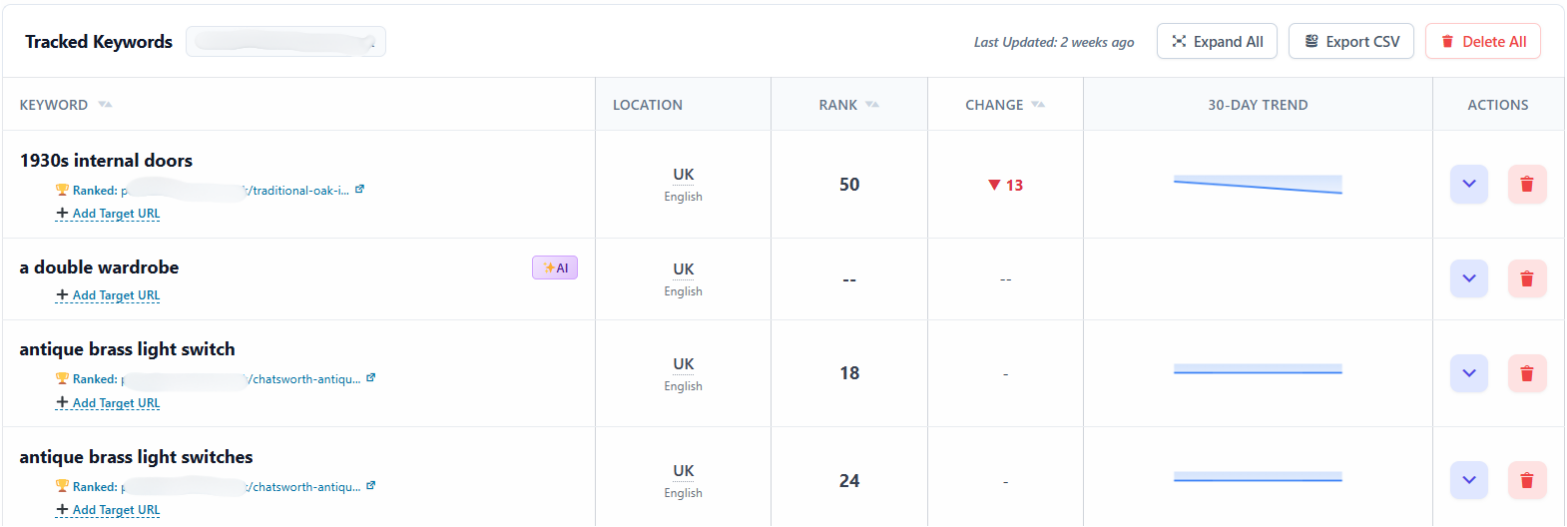
Look for keywords that have an AI indicator (✨ AI icon) next to them.
Explanation
Serpspur automatically shows which keywords trigger Google AI Overview results.
This helps you:
- Quickly identify high-opportunity keywords
- Avoid wasting time on keywords without AI visibility
- Focus only on keywords where AI content matters
Step 4: View SERP Details
Click on the arrow icon (dropdown) next to any keyword.

Here, you will see detailed SERP features such as:
- AI Overview
- People Also Ask
- Images
- Videos
- Related Searches
Explanation
This section shows where and how your keyword appears in Google results, helping you understand content opportunities and competition.
Step 5: Generate AI SERP Blueprint
Now click on Generate Blueprint.

A confirmation popup will appear showing the credit cost.
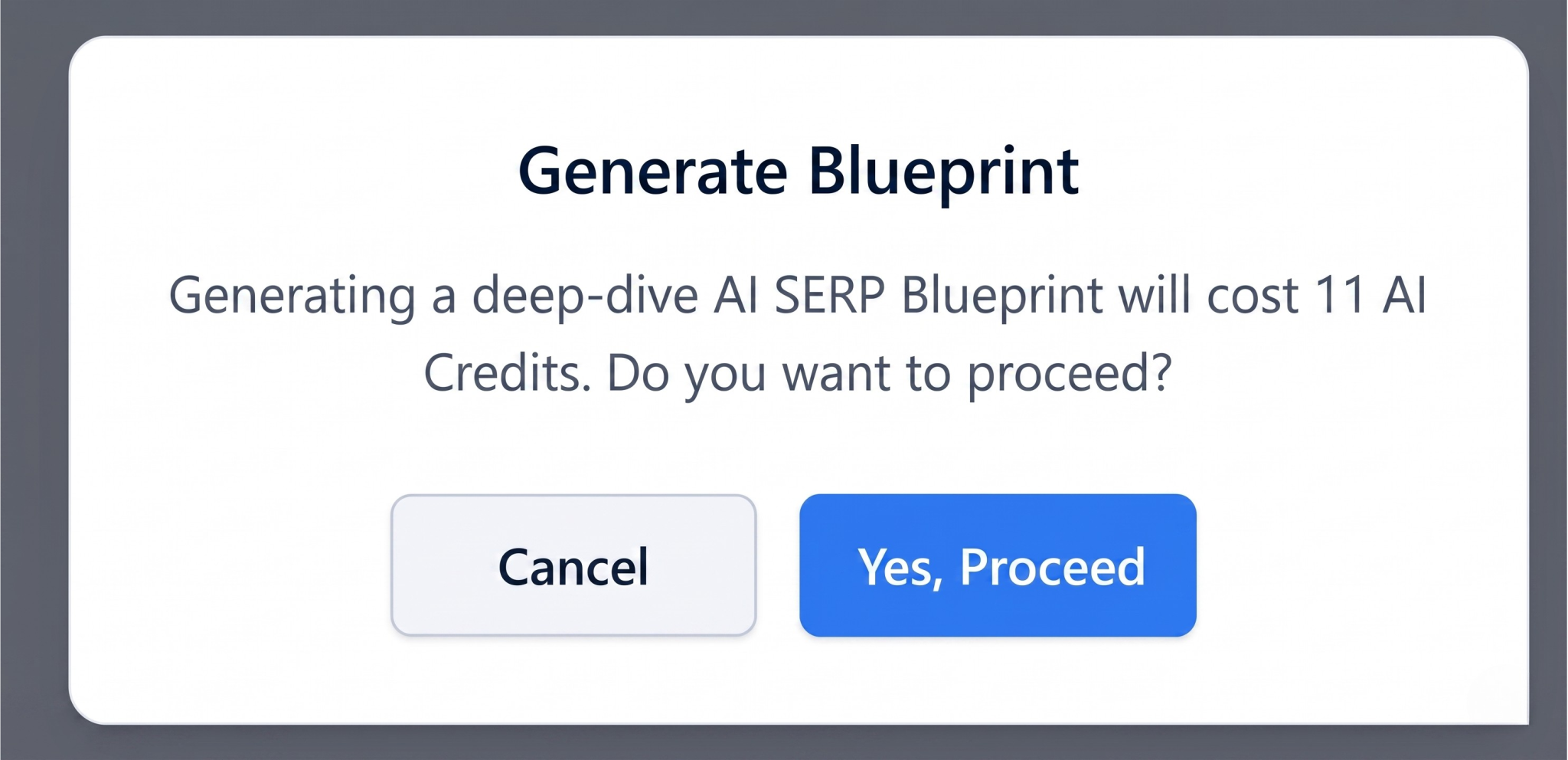
Click on Yes, Proceed to continue.
Explanation
Generating a blueprint uses credits (e.g., 11 credits) and allows you to analyze what AI considers the “perfect answer” for that keyword.
Step 6: View AI Blueprint Results
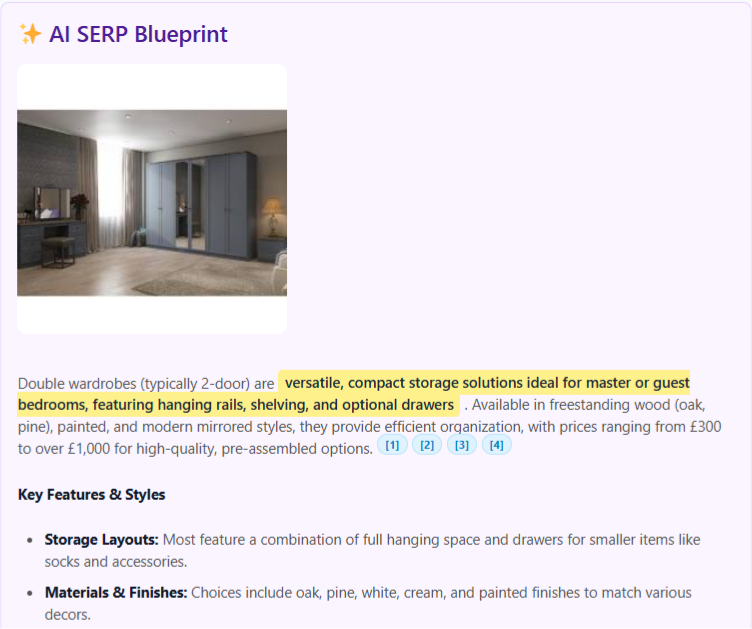
After processing, the system will generate an AI blueprint for your keyword.
Explanation
The AI Blueprint shows:
- How AI answers the query
- Key content points and structure
- Important topics and keywords
- Content style and format
This helps you create content that is optimized for Google AI Overviews and increases your chances of ranking.
Step 7: If No AI Result is Found
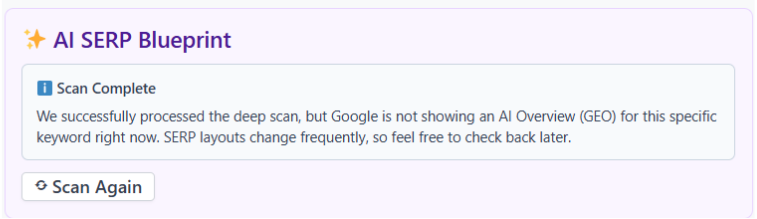
In some cases, after generating the blueprint, you may not see an AI result.
Explanation
If Google is not currently showing an AI Overview for that keyword, Serpspur will display a message like:
- The scan is completed successfully
- But no AI Overview is available for that keyword right now
This usually happens because:
- Google does not show AI results for that keyword
- SERP layouts change frequently
- The keyword may not trigger AI content yet
What You Can Do
- Try another keyword with an AI indicator (✨)
- Recheck the same keyword later
- Focus on keywords where AI results are already visible
Pro Tip
Always prioritize keywords that already show AI Overview, as they have higher chances of ranking in AI-generated results.