
Images are an essential part of any website, but unoptimized images can negatively impact your site’s performance, SEO, and user experience. Issues like missing ALT text, large file sizes, and improper scaling can slow down your pages and reduce visibility in search engines.
SerpSpur’s Image Audit feature helps you quickly identify and fix these problems by providing a detailed report of all image-related issues across your website.
In this guide, you’ll learn how to generate a scan and access the Image Audit Full Report step by step.
Step 1: Enter Your Domain & Create Scan
Start by entering your website domain in the input field. Then select your scan settings such as number of pages, location, and credits. After that, click on the Create Scan button to begin the audit.

Explanation
This step initializes the audit process for your website. SerpSpur will start crawling your selected pages and collect data related to SEO, including image-related issues.
- Domain Field → Enter your website URL
- Pages Limit → Define how many pages to scan
- Location → Choose target country for analysis
- Create Scan → Starts the auditing process
Step 2: Open Project Overview
Once your scan is completed, go to the Projects Overview section. Here, you will see a list of all your scanned domains along with their processing status.

Explanation
The Project Overview page gives you quick access to all your scans and their results. From here, you can:
- View your scanned domain
- Check how many pages have been processed
- See the last scan activity
- Access different actions for your project
Click on your domain (project) to open its detailed dashboard and view audit reports, including the Image Audit section.
Step 3: Open Image Audit & Click on “Full Report”
After opening your project, you will see a complete dashboard with different SEO metrics and audit sections, including the Image Audit overview.
Scroll to the Image Audit section and click on the Full Report button.
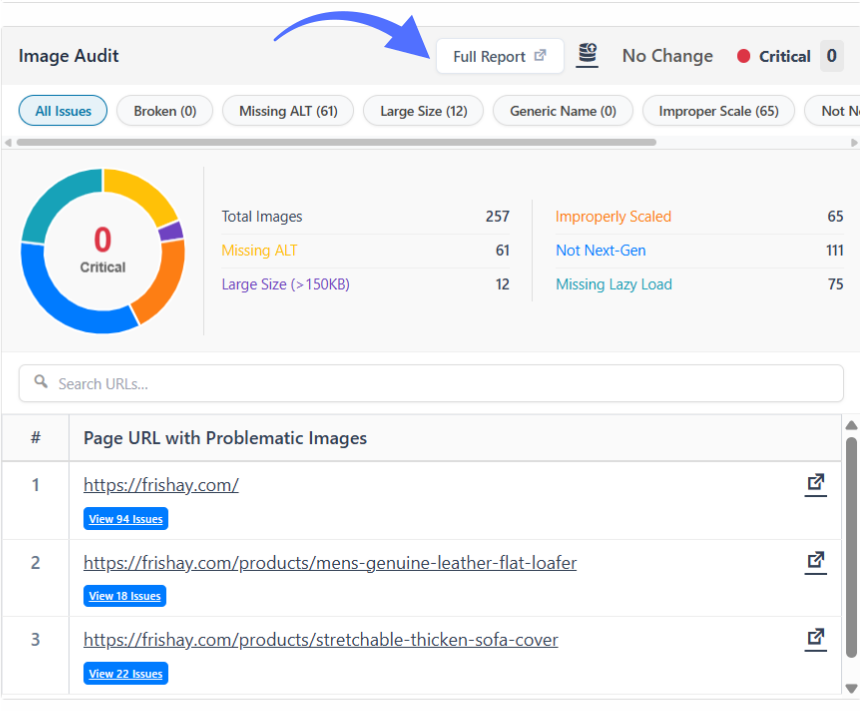
Explanation
Once inside your project dashboard, SerpSpur displays multiple insights such as traffic, keywords, backlinks, and overall website health.
In the Image Audit section, you’ll find a summary of image-related issues like:
- Missing ALT text
- Large image sizes
- Improper scaling
- Missing lazy loading
- Not using next-gen formats
To view all issues in detail, click on the Full Report button. This will take you to a complete breakdown of image problems across your website.
Step 4: View Detailed Image Issues Report
After clicking on the Full Report button, you will be redirected to a detailed report page where all image-related issues are listed per URL.
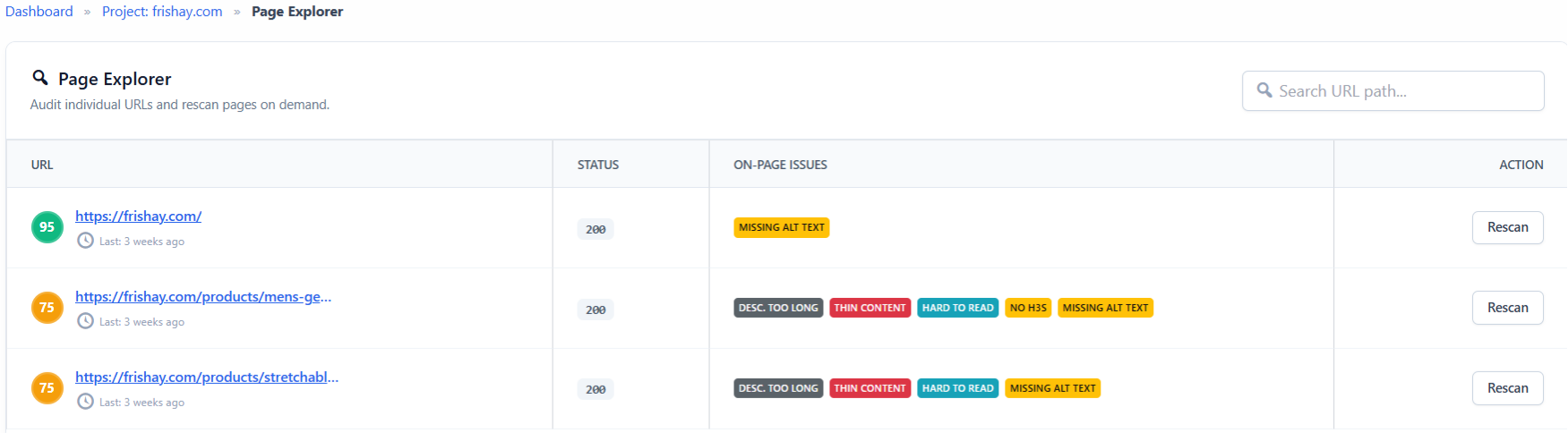
Explanation
On this page, you can see a breakdown of individual URLs along with their on-page issues, including image-related problems such as:
- Missing ALT text
- Other on-page SEO issues affecting images
- Status of each page
This detailed view helps you:
- Identify exactly which pages have image issues
- Understand what type of issues exist on each URL
- Take action by reviewing or rescanning specific pages
You can also use this section to prioritize fixes based on the severity and type of issues found.